ShowPay
ShowPay App

ShowPay - The Easiest Way to Trade and Earn

Get to know the ShowPay app with this simple guide. Explore registration, account access, deposits, payment tools and team screens, with everything you need to find your way around.

Discover the ShowPay App

ShowPay brings account access, INR and USDT screens, payment tools and team activity into a mobile interface. This guide helps you recognise each screen and locate the options already available in the app.

Start with the login button above to open your account at showpay-offical.website. The web version works in your phone's browser, so you can view your account without installing a separate app.

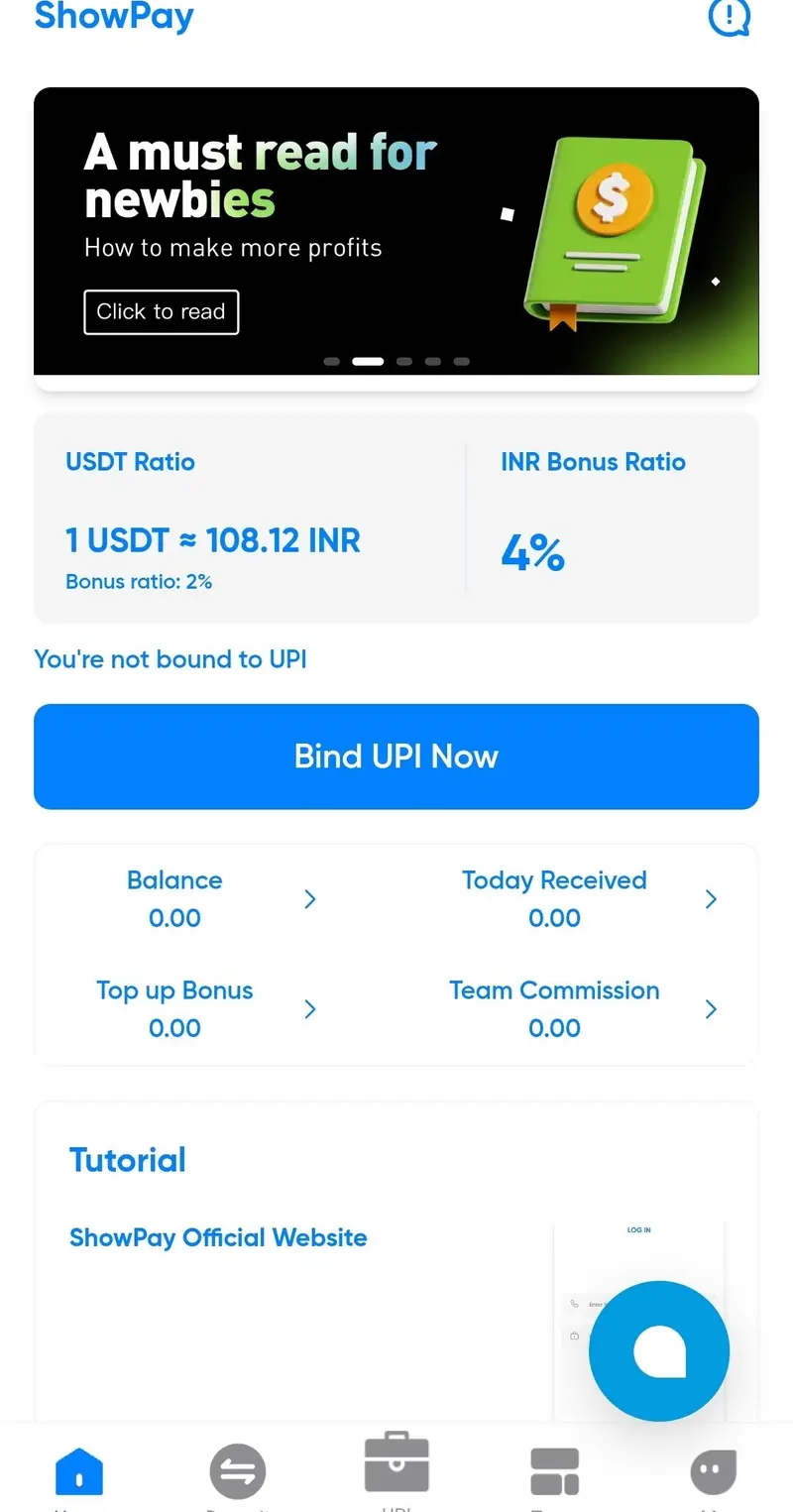
ShowPay home screen with USDT ratio, balance, top-up and team overview

The home screen groups your balance, received payments, top-up activity and team commission. It also displays a USDT conversion ratio and shortcuts to payment tools. Values in these screenshots are examples; your account shows your current information.

Your ShowPay Guide

Get Started with ShowPay

New to the app? Use Create Account to reach the registration destination linked from the existing ShowPay login page. If you already have an account, choose Login Securely.

Creating your account

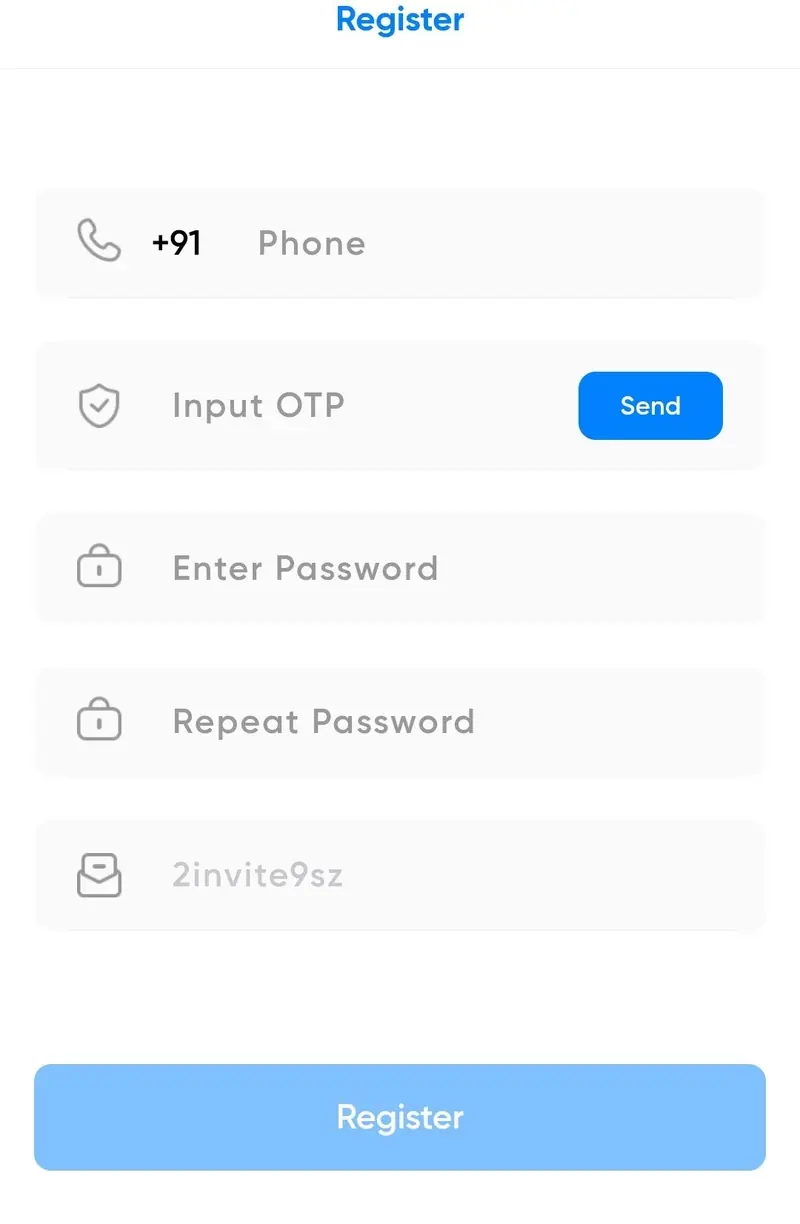
Example ShowPay registration form

The registration screen collects your account details. Complete the fields shown by the registration service and review them before submitting.

  • Open registration. Select Create Account at the top of this page.
  • Enter your phone number. Use the number you want to associate with your account.
  • Choose a password. Keep your sign-in details private.
  • Check the invitation code. The existing registration link on showpay-offical.website uses the code below.
2invite5p6

Accessing an existing account

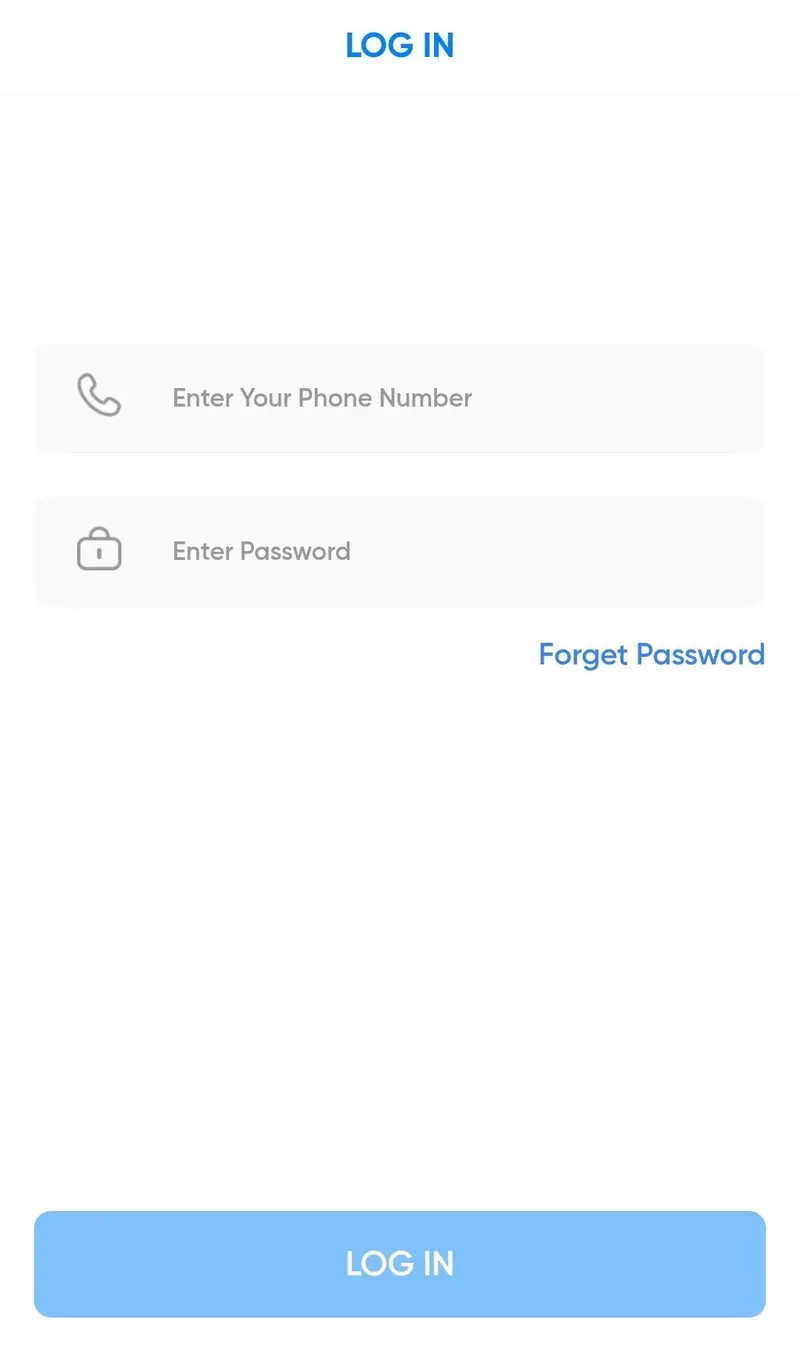
ShowPay sign-in screen with phone number and password fields
  • Open the login page using Login Securely.
  • Enter your details in the phone-number and password fields.
  • Need help signing in? Use the password-help option available on the login screen.
Go to ShowPay Login

Your Profile & Account

Open the Me section to find profile information, account activity and settings in one place. This is also where you can locate the contact panel.

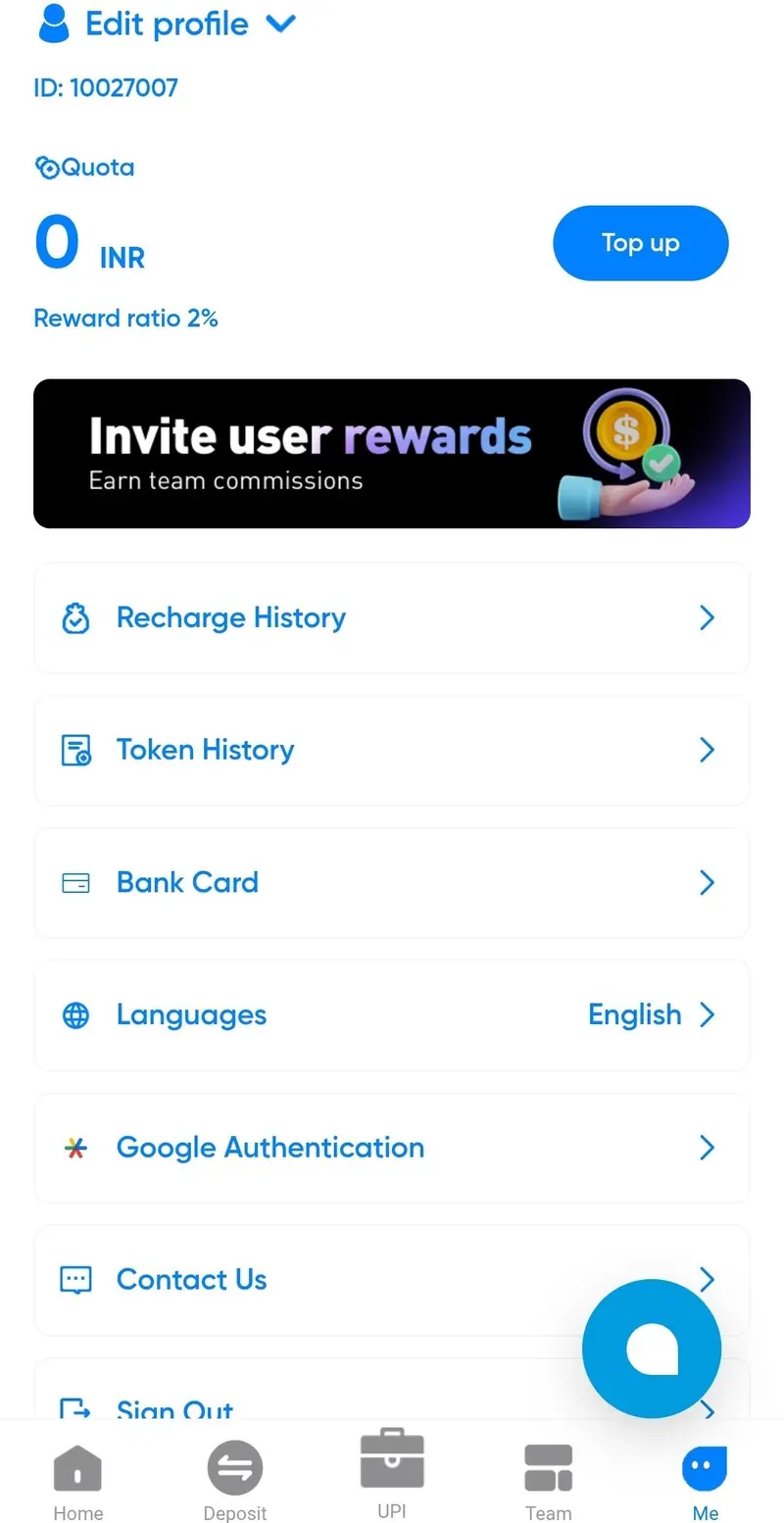
ShowPay profile with account balance and settings

Find the setting you need

  • Profile details: View your account identifier and profile information.
  • Account history: Recharge History and Token History organise previous activity.
  • Bank Card: Locate the payment details associated with your account.
  • Language and security: Find language preferences and Google Authentication options.

Use the Top up shortcut to reach the deposit screen. For a question about your account, open the contact option inside the app.

Explore the Deposit Screens

The deposit area separates INR and USDT. Choose the relevant tab in your account to see the available options, current amounts and any applicable conditions.

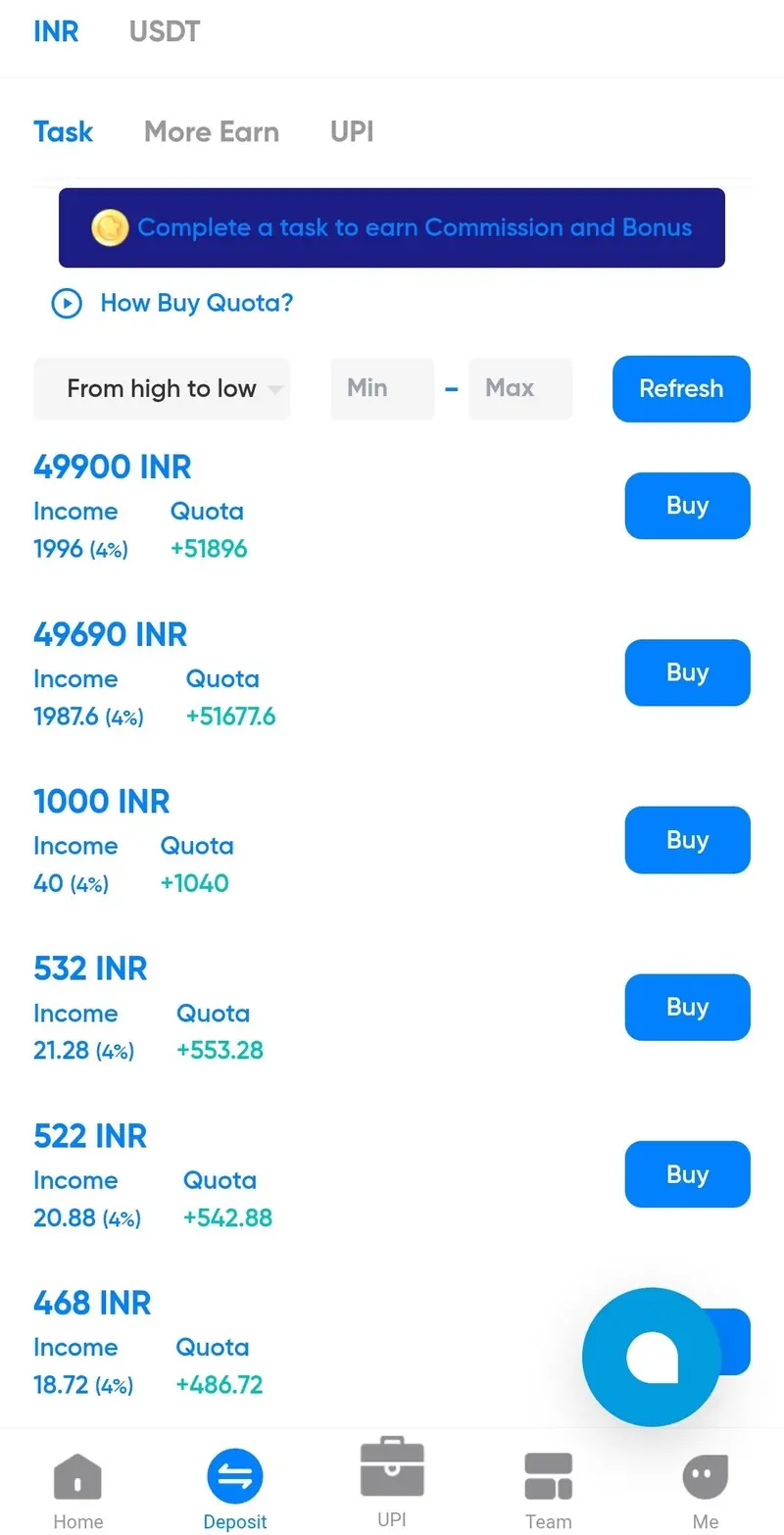
The INR view

ShowPay INR deposit screen with order amounts and filters

The INR screenshot contains order rows, filters and Buy controls. Income and Quota are shown alongside each order amount. Read the details in your account before selecting an order.

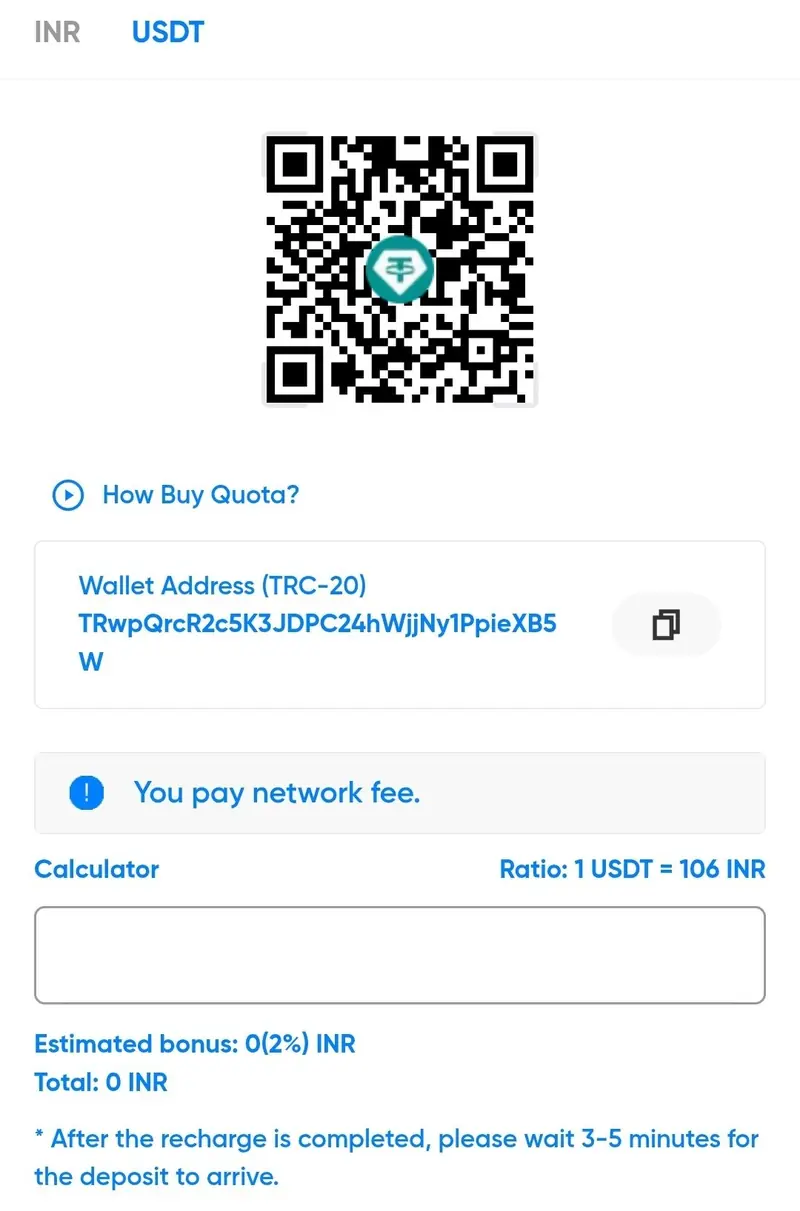
The USDT view

Example USDT deposit interface in ShowPay

The USDT screen presents deposit information separately from INR. For your own deposit details, open your signed-in account; the image here is a visual example.

Find more information in the ShowPay USDT guide.

UPI & Payment Screens

Payment tools bring together the account and channel options shown by ShowPay. Open the relevant tool from your home screen to view the choices available to your account.

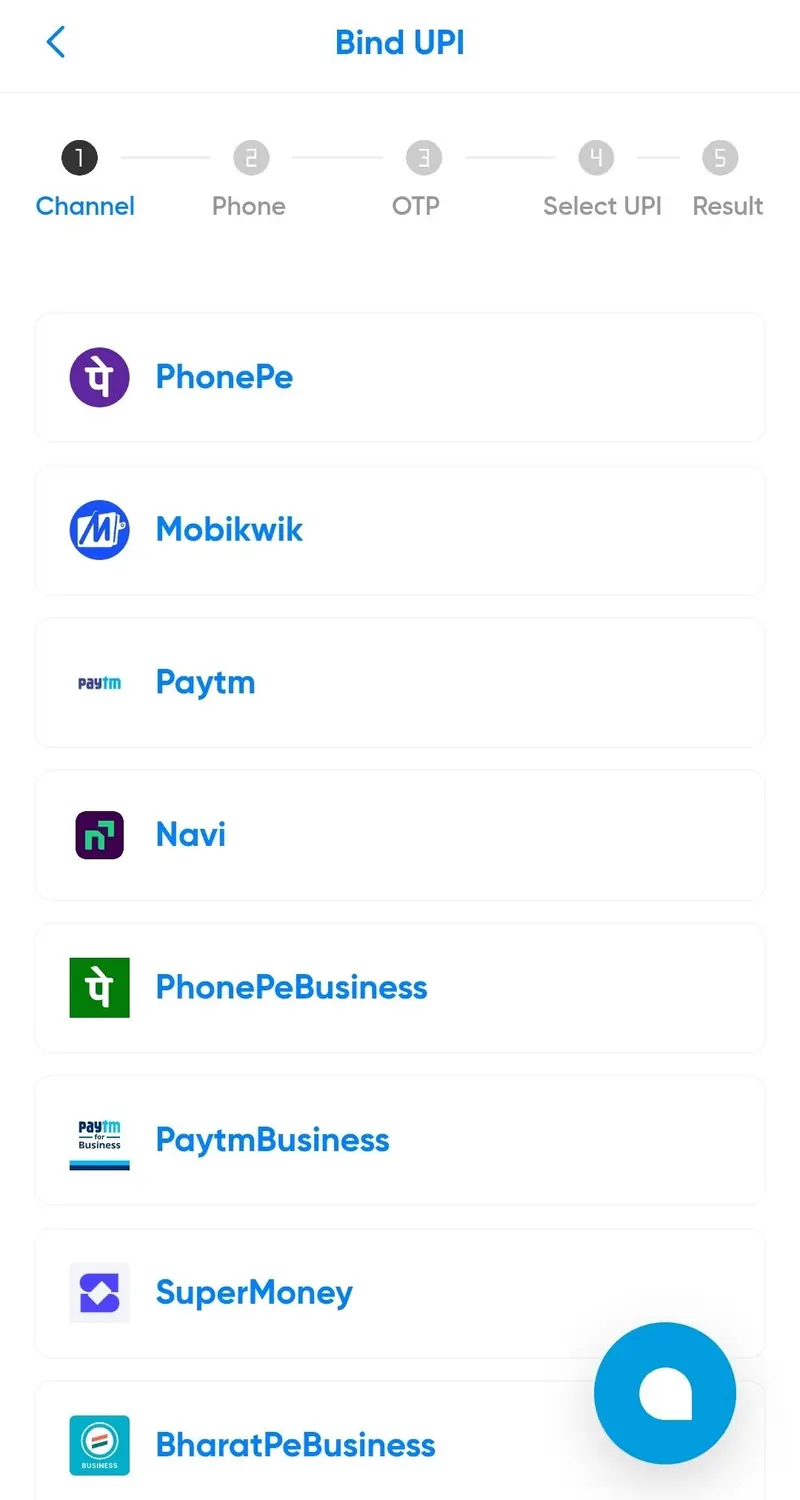
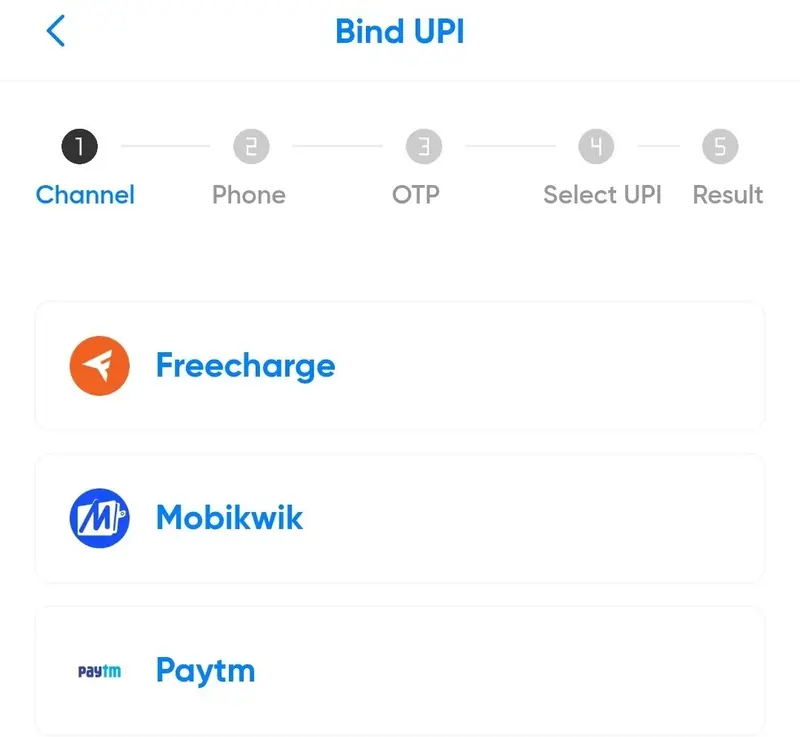
Adding a payment account

ShowPay payment account setup screen and supported channel choices

The illustrated setup screen organises the process into a sequence, with channel selection followed by phone and verification details. Follow the prompts in your own account.

Viewing payment activity

ShowPay sent-payment tool and payment status interface

Use the payment screen to review the status of an order and the details associated with it. Your bank or UPI app provides the record of money actually received or sent.

Your Team Dashboard

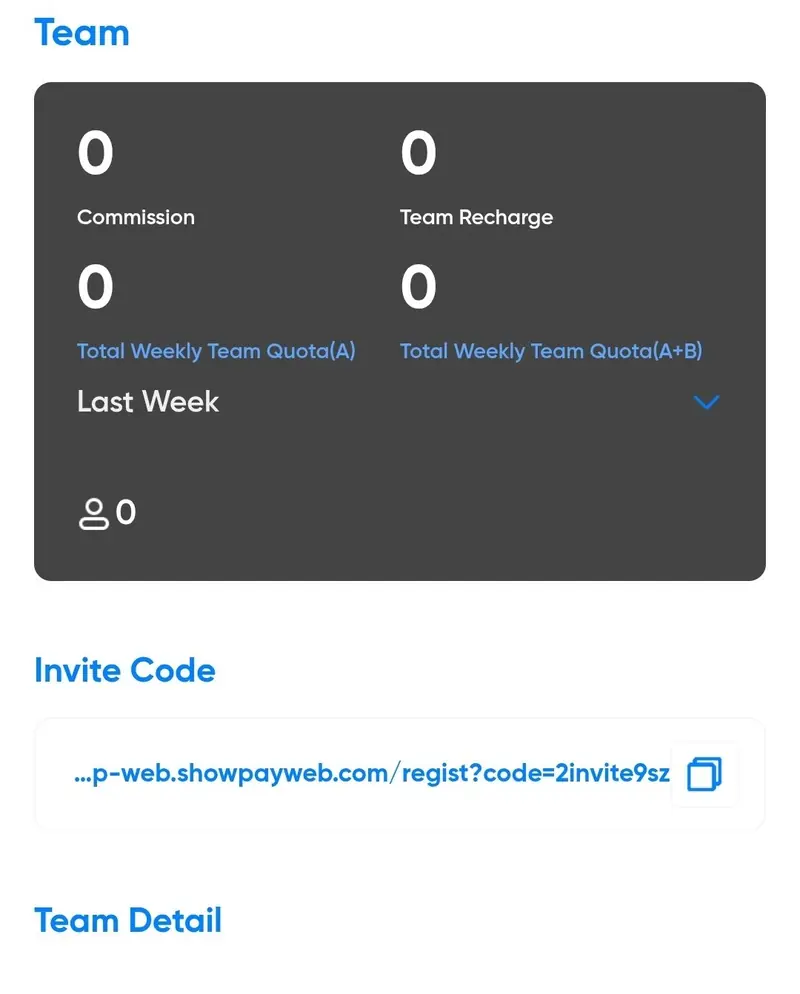
The Team screen presents network activity and reward summaries. Its separate panels make it easier to distinguish commission, recharge activity and weekly totals.

ShowPay team overview with commission and weekly quota panels

Reading the team summary

  • Commission: View the figure recorded in your account.
  • Team Recharge: Find the recharge summary for your team.
  • Weekly Quota: A and A+B appear as separate totals.
  • Last Week: Compare the previous period using the screen's controls.

Finding your invitation

Open the invitation option in your own team screen to access your personal details. The registration link used by this website includes the code below.

2invite5p6

Contact & Account Help

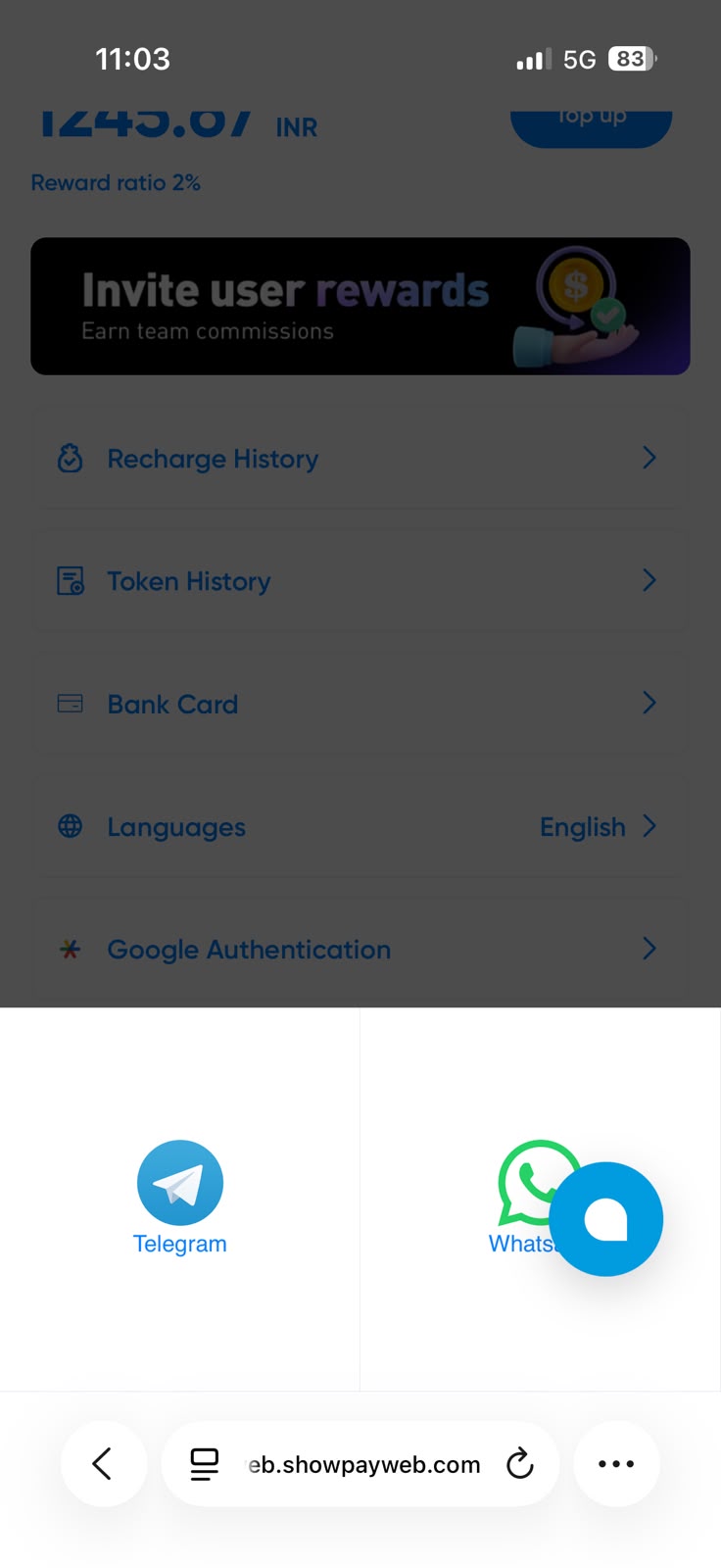
Open the contact option from your profile to see the support channels provided inside your account.

Contact panel shown over the ShowPay profile screen

For sign-in help, return to the login page and use its available account-help controls.

Open ShowPay

Inside the ShowPay App

A quick overview of the tools shown throughout this guide.

⚡ Account at a glance

Home brings your balance and recent activity together.

💰 Deposit options

Separate INR and USDT views help you find the relevant information.

🤝 Team overview

Commission, recharge and weekly quota panels share one screen.

🛡️ Account settings

Profile, language and authentication controls are grouped in Me.

A Few Useful Details

Keep these points in mind as you explore the app.

🌟 Easy to find

  • Browser access: Sign in through showpay-offical.website.
  • Screen shortcuts: Move between home, deposits, team and profile.
  • Account records: Review history from your profile menu.

💡 Before you continue

  • Current values: Check your signed-in account for rates and conditions.
  • Screen examples: Images here do not show your personal balance.
  • App access: The app guide explains the currently available browser option.

ShowPay App Access

Use ShowPay from a current mobile or desktop browser. The app-access page on this website has more information about the web version and APK availability.

Access
Web App
Devices
Phone & PC
Browser
Modern
Sign In
Online

ShowPay Questions & Answers

Quick help with the pages and options covered in this guide.

Where do I sign in?
Use Login Securely to open showpay-offical.website, then enter your account details.
How do I open registration?
Select Create Account at the top. It opens the registration link already used by this website.
What if I forget my password?
Open the login page and use its password-help option to see the available recovery steps.
Where are the deposit options?
Open Top up or the deposit area in your account. INR and USDT are presented as separate tabs.
Are these my account balances?
No. The images illustrate the interface. Sign in to see the information associated with your own account.
Where can I find my team activity?
Open Team to view the commission, recharge and weekly quota panels recorded in your account.
How do I find account settings?
The Me section contains profile, history, bank-card, language and authentication options.
Where is the app download?
The app-access guide explains the browser version. This website does not currently host a direct APK installer.
How do I contact support?
Use the contact option inside your signed-in profile to see the support destinations provided there.